Fixing SQL Server Error 825

Today, I was trying to introduce a couple of computed columns to a legacy application’s schema. During this time, I was trying several approaches creating, deleting & re-creating columns using the same name with different definitions and persistence options. When I tried to query data in this table from the application I got the following exception:

Error 582 : SQL Server detected a logical consistency-based I/O error: incorrect pageid (expected 1:8904; actual 1:560702). It occurred during a read of page (1:8904) in database ID 5 at offset 0x00000004590000 in file ‘C:\Program Files\Microsoft SQL Server\MSSQL10.GCIMSDEV\MSSQL\DATA\xxxx.MDF’.  Additional messages in the SQL Server error log or system event log may provide more detail. This is a severe error condition that threatens database integrity and must be corrected immediately. Complete a full database consistency check (DBCC CHECKDB). This error can be caused by many factors; for more information, see SQL Server Books Online. 

Sounds pretty scary right? I had never seen this exception before and decided instead of trying a full database restore, I’d try repairing the database. It’s just a development database, so no pressure 🙂

First, I needed to find the table(s) that were corrupted with the DBCC CHECKDB in SQL Server Management Studio

DBCC checkdb('DB_NAME');

Which resulted in the following error in the resulting output listing

DBCC results for ‘tblSAPSynchPayment’.
Msg 8978, Level 16, State 1, Line 1
Table error: Object ID 180104328, index ID 1, partition ID 293278293950464, alloc unit ID 11803317239808 (type In-row data). Page (1:560690) is missing a reference from previous page (1:8904). Possible chain linkage problem.
Msg 8909, Level 16, State 1, Line 1
Table error: Object ID 180104328, index ID 1, partition ID 293278293950464, alloc unit ID 293278293950464 (type In-row data), page ID (1:8904) contains an incorrect page ID in its page header. The PageId in the page header = (1:560702).
Msg 8928, Level 16, State 1, Line 1
Object ID 180104328, index ID 1, partition ID 293278293950464, alloc unit ID 293278293950464 (type In-row data): Page (1:8904) could not be processed. See other errors for details.
Msg 8976, Level 16, State 1, Line 1
Table error: Object ID 180104328, index ID 1, partition ID 293278293950464, alloc unit ID 293278293950464 (type In-row data). Page (1:8904) was not seen in the scan although its parent (1:7060) and previous (1:560689) refer to it. Check any previous errors.

All good, now I know which table needs to be repaired. Luckily this was the only table affected and it just happened to be the table I was modifying.

To repair a table using DBCC CHECKTABLE, the database must first be put into single user mode

ALTER DATABASE DB_NAME SET SINGLE_USER WITH ROLLBACK IMMEDIATE;

Then, we can repair the affected table. Note the REPAIR_ALLOW_DATA loss option

DBCC CheckTable ('[DB_NAME].[dbo].[tblSAPSynchPayment]',
REPAIR_ALLOW_DATA_LOSS);

Then switch the DB back to multi-user mode

ALTER DATABASE DB_NAME SET MULTI_USER;

Finally, re-check the entire database for errors

DBCC checkdb('DB_NAME');

I think because I had created a persisted computed column and then re-created it with a different formula and non-persisted likely resulted in it becoming corrupted. Of course, your mileage may vary.

Reference

How to troubleshoot Msg 824 in SQL Server
http://support.microsoft.com/default.aspx?kbid=2015756

TechNet – CHECKDB
http://technet.microsoft.com/en-us/library/aa258278(v=sql.80).aspx

TechNet – CHECKTABLE
http://technet.microsoft.com/en-us/library/aa258646(v=sql.80).aspx
TeamCity – Change server data directory

If you want to change the <data_directory> path after installing TeamCity 6.5 on Windows, all you need to do is change the teamcity.data.path JVM property. On the default Tomcat server:

  1. Open a command prompt
  2. Execute C:\TeamCity\Bin\Tomcat6w.exe //ES//TeamCity
  3. In the configuration window that come up, change the teamcity.data.path property on the Java tab in the Java Option section to your desired location
  4. Save and Close
  5. Shutdown the TeamCity service(s)
  6. Move all the files that exist in the old datadir location to the new one
  7. Restart the TeamCity service(s)

When the server comes back up, all your existing artifacts should be available and new builds will use the new path.

It looks as if there is now an Environment variable in v7.1+ that can be set instead.

Some more documentation available here http://confluence.jetbrains.net/display/TCD7/TeamCity+Data+Directory

Visual Studio 2010 – Failing project reference

I just ran into a bug with project references not being found in Visual Studio 2010 if the paths of the source and referenced projects are a certain length.

Visual Studio 2010 fails to build the project when the following occurs:

  1. The sum of the following two items exactly 259 characters
    1. The referencing project’s directory path
    2. The relative path to a referenced project from the directory in A

This appears to be due to a bug in Path.GetFullPath in the .NET Framework. More information can be found at http://support.microsoft.com/kb/2516078

Oracle compilation and PLSQL_OPTIMIZE_LEVEL

When compiling objects (functions/procedures/packages) in Oracle, there are several options available to aid in debugging and performance

  1. PLSQL_OPTIMIZE_LEVEL – introduced in Oracle 10g, this system/session option specifies the optimizations Oracle should use to compile program units. These include improvements such as inlining and replacing cursor for loops with more efficient bulk operations such as FORALL.  For more information, see http://docs.oracle.com/cd/E14072_01/server.112/e10820/initparams189.htm
  2. Compile with DEBUG option. This option tells Oracle to generate instrumentation code for the PL/SQL debugger. Specifying DEBUG has the same effect as PLSQL_OPTIMIZE_LEVEL=1 according to the 11gR2 docs here

To view the optimization level, debug flags and other settings applying to individual program units (within the current schema), you can query USER_PLSQL_OBJECT_SETTINGS

select * from user_plsql_object_settings

Citrix and .NET user application settings

If you have found that user (or application) settings are disappearing in your .NET application when you log out of Citrix, you may need to use Roaming profiles to store the settings. This will ensure that settings are persisted across Citrix logins.

This is accomplished with the following attribute in your Settings class:


[UserScopedSettingAttribute()]
[DebuggerNonUserCodeAttribute()]
[DefaultSettingValueAttribute("-1")]
[SettingsManageabilityAttribute(SettingsManageability.Roaming)]
public int DefaultCropId {
get {
   return ((int)(this["DefaultCropId"]));
}
set {
   this["DefaultCropId"] = value;
}
}

Note the SettingsManageability.Roaming option. This causes the user.appSettings file to be created under %AppData%/Roaming/ instead of %AppData%/Local/

Removing duplicate records in Oracle table based on key

If you have ever needed to add a unique key to a table in Oracle (I’m sure a similar query in SQL Server would work) but couldn’t because of duplicate rows, maybe the following query will help you.

Assume you want to create the following index


alter table FREIGHT_RATE
   add constraint FREIGHT_RATE_UK02 
   unique (CARRIER_EQUIP_TYPE_XREF_ID, 
           CARRIER_LANE_ID,  
           RATE_ADJ_ID, 
           CURRENCY_UOM_ID, 
           EFF_END_DTE)

but can’t because of duplicate records….

The following query will locate and delete duplicate records based on their eff_strt_dte (choosing the most recently added one as the one to keep)


DELETE FROM freight_rate
WHERE freight_rate_id IN(
  WITH unique_ids AS (
     SELECT * from (
        SELECT first_value(freight_rate_id) OVER(PARTITION BY
                                   CARRIER_EQUIP_TYPE_XREF_ID,
                                   CARRIER_LANE_ID,
                                   RATE_ADJ_ID,
                                   CURRENCY_UOM_ID,
                                        EFF_END_DTE
        ORDER BY rate_eff_strt_dte DESC) as ids
     FROM freight_rate)
 ), not_in AS (
     SELECT freight_rate_id FROM freight_rate
     MINUS
     SELECT ids from unique_ids
 )
 select freight_rate_id from not_in
)

Note the use of the WITH clause to come up with a list of ID’s to delete. This was done because of a constraint in place that only allows us to use 5 seconds of CPU time on the database server for any single query. A query similar to the following wouldn’t work:


DELETE FROM freight_rate
WHERE ROWID NOT IN(SELECT first_value(ROWID) OVER(PARTITION BY
                                   CARRIER_EQUIP_TYPE_XREF_ID,
                                   CARRIER_LANE_ID,
                                   RATE_ADJ_ID,
                                   CURRENCY_UOM_ID,
                                   EFF_END_DTE
                      ORDER BY rate_eff_strt_dte DESC)
                   FROM freight_rate);

This query would run for >2min before failing on the 5s CPU limit. The first query runs in just a couple of seconds!

Visual Studio – Force Backspace to delete tabs

By default in Visual Studio 2010, the backspace key deletes a single character. I believe this behavior changed in VS 2005 but I keep forgetting how to change it. I know you can hold Ctrl+Backspace to delete the tab, but that to me is just slow and unnecessary. 90% of the time, I want to delete the entire tab when I hit backspace.

To make the backspace key delete an entire tab, go to Tools -> Options…, and expand Text Editor -> All Langauges ->Tabs. In the Tab group select the Keep tabs radio button. You can also do this on a per language basis if you wish.

SQL Server: Restoring database backup to different location or name

Performing backup/restore operations are extremely simple in SQL Server. In most cases, it’s as simple as right-clicking on the database in Management Studio and selecting Tasks->Backup/Restore.

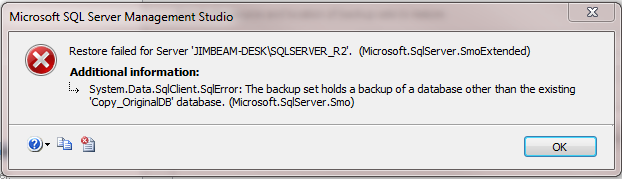
However, if you have ever tried to restore a backup to a database other than the one it came from (such as, same machine/instance with another database name) you may see the following message.

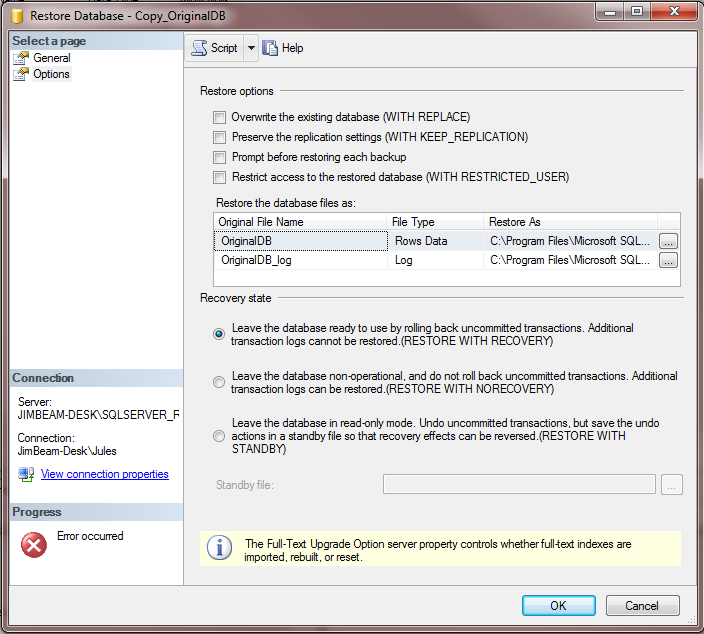
The solution to this problem is to use the Move option on the Restore operation. This can be done in both Management Studio or via T-SQL. However, when trying to use Management Studio, you might ask, “Where is the Move option?” All the other options are labelled beside their appropriate check boxes (all upper case) in the Options page of the Restore Database task

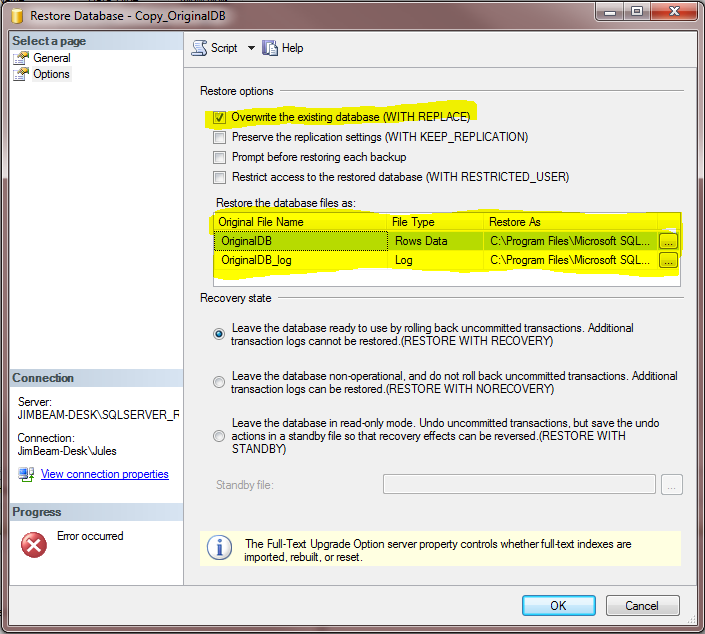
The Move option in Management Studio is actually set when you select different file paths in the Restore the database files as section in the middle of the screen. What you need to do is select a new file location for each file (mdf & log). What I usually do is reset the old paths with the new file paths set up as part of the new database.

Also select the WITH REPLACE option at the top of the screen

In T-SQL you can do the following

USE master;
GO

-- Get number and names of the files in the backup
RESTORE FILELISTONLY
  FROM DISK = 'C:\BAK\OriginalDB.bak';

Gives us information about the files contained in the backup that we can use in the next step

USE master;
GO

-- Do the restore
RESTORE DATABASE [Copy_OriginalDB]
  FROM DISK = 'C:\BAK\OriginalDB.bak'
  WITH
    RECOVERY,
  MOVE 'OriginalDB'
    TO 'C:\Data\Copy_OriginalDB.mdf',
  MOVE 'OriginalDB_Log'
    TO 'C:\Data\Copy_OriginalDB_Log.ldf';
GO

See the following MSDN documents for more info
http://msdn.microsoft.com/en-us/library/ms190447.aspx
http://msdn.microsoft.com/en-us/library/ms173778.aspx 

VMWare ESX – Enable automatic guest startup

I just recently set up my first VMWare ESXi machine at home. I wanted a dedicated virtualization host to test various setups and configurations easily.

Once I had several guests setup and installed, one of the first things that I wanted to do was make sure that the important guest VM’s started up automatically when the host machine is booted or re-started (either on purpose or accidentally)

After digging around a bit, here are the instructions to set this up. Part of the process is not as intuative as I would have thought, so I wrote up the instructions in case someone else was looking for help

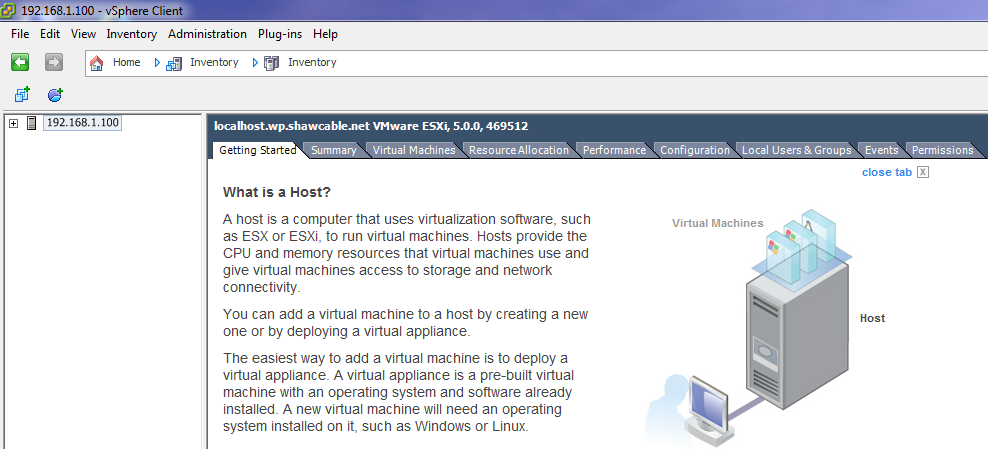
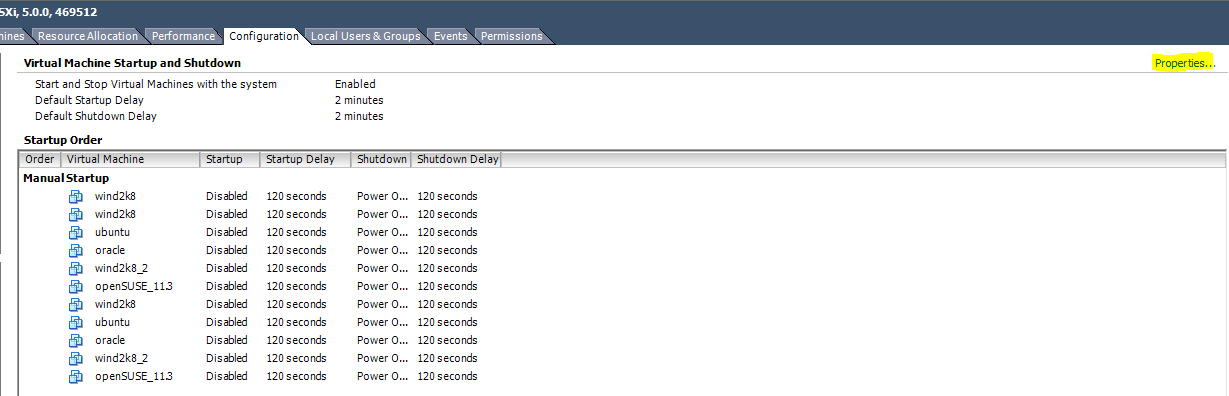
1) Open vSphere client and connect to your host

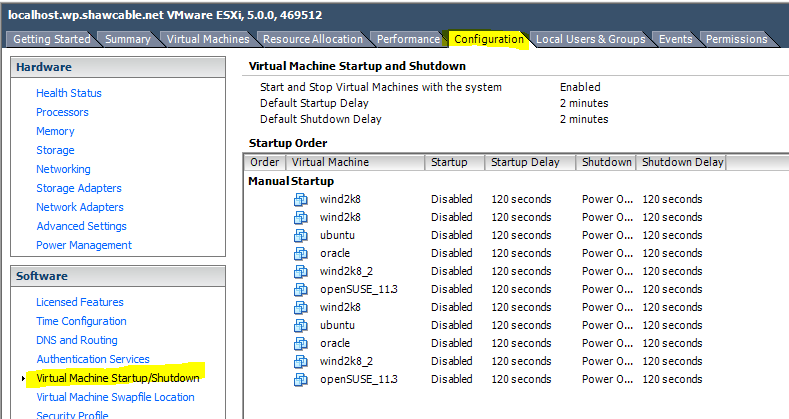
2) Next, select your host and click the Configuration tab
3) Under the Software pane on the left side, click on Virtual Machine Startup/Shutdown

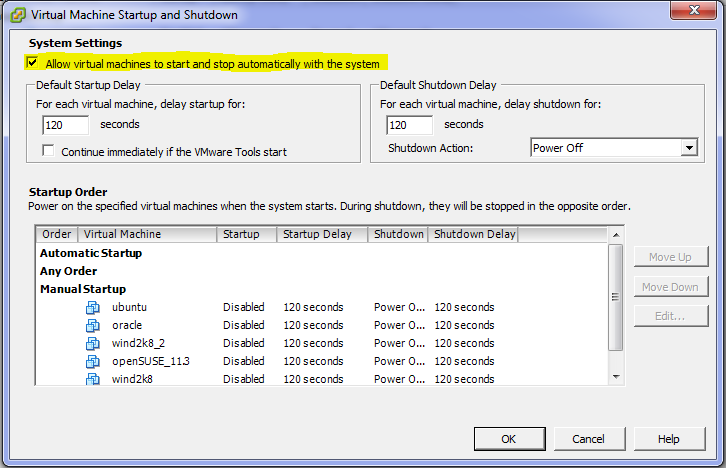
4) Here’s where it get’s interesting. See all the Disabled labels under the Startup column? We need to switch this to enabled. First click on the Properties… link on the top right of the list.

5) To enable automatic startup, check the Allow virtual machines to start and stop automatically with the system

6) This is where I struggled for a couple seconds. I thought you would be able to set the starup type for each machine by clicking in the Startup column or selecting a machine and clicking Edit… Unfortunatly, that is not how it works and the Edit button remains disabled until the machine is set up to automatically start.

To get a machine to start up automatically and the be able to edit the machine’s startup settings, you must select a virtual guest and click the Move Up button until the machine is under the Automatic Startup group.

7) Click OK and you’re done

There you go. Now when the host machine is restarted, both my Ubuntu Linux and Oracle Enterprise Linux servers will start up automatically, in the order listed above. To keep resource demands in check you can also set up specific delays to stagger your guest start ups.

Enable ping replies from Windows 2008 Server

By default, when you set up a new Windows 2008 Server (including R2), you may notice that the machine will not reply to ping request with a ICMP response. I have not been able to find any official documentation stating when this started being the default on Windows servers. It was likely done to reduce the surface attack area of the server by protecting the server from simple DoS (flood pinging) attacks, as well as attacks such as a malformed “ping of death” ICMP echo request.

If you’re like me, you like to be able to test that a server is available via “pinging” it. Fortunatley, enabling this feature in Windows Server is easy. There are two ways of doing it.

To enable via the command line

netsh firewall set icmpsetting 8

To disable

netsh firewall set icmpsetting 8 disable

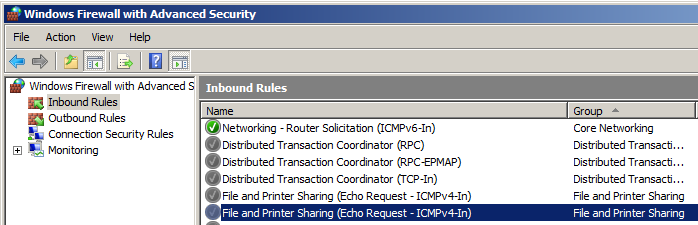
Or you can go into Administrative Tools->Windows Firewall with Advanced Security. In the Inbound Rules you will find a rule titled File and Printer Sharing (Echo Request – ICMPv4-In). To enable, right-click and select Enable. If you are using IPv6, be sure to enable the v6 verison of the rule.